
Graphic design often involves transforming ideas into visually striking creations, and vector graphics are a powerful tool in a designer’s arsenal. Whether you’re a freelance designer building brand assets, a small business owner creating logos, or a hobbyist working on personal projects, vector graphics offer unmatched flexibility and scalability. You can stretch them to billboard size, or shrink them to a business card, and they’ll maintain their sharpness and clarity.
For this reason, converting images (like PNGs or JPEGs) into vectors is essential in today’s design world. Thankfully, there are free online tools that make this task not only possible but also incredibly simple.
This guide will introduce you to the best free tools available in 2025 for converting images to vectors. You’ll also learn how to use them effectively, discover tips for selecting the perfect one for your needs, and find resources to elevate your design skills.
Read more: The Future of Image Editing and Retouching
Why Convert Images to Vectors?
Before we jump into the top tools, it’s important to understand why vector graphics matter. Raster images (like JPEG or PNG) are resolution-dependent, meaning they can lose quality when resized. Vectors, on the other hand, are created using mathematical formulas and remain crisp at any size.
This makes vectors ideal for:
- Logo design (which often needs resizing for different platforms)
- High-quality prints and merchandise
- Web graphics that load faster and look professional
- Scalable visual branding
If you find yourself stuck with raster images but need the flexibility of a vector file, that’s where these tools come in handy.
Read more: 2024 Amazon Product Photography Guide for E-Commerce Brands
Top 10 Free Tools for Converting Images to Vectors in 2025
Here’s a rundown of user-friendly, free tools that convert images to vectors online. We’ll include clear instructions to help you get started.
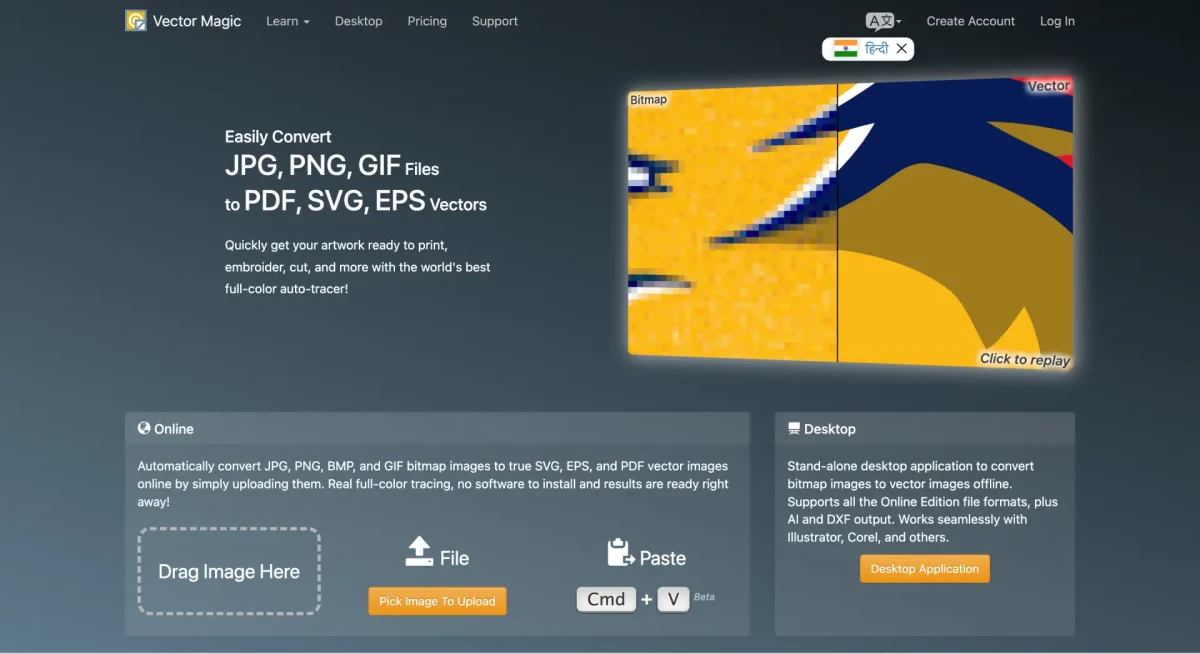
1. VectorMagic

Why use it? VectorMagic is known for its accuracy and ease of use. It simplifies the process by automatically detecting settings based on the uploaded image.
How to use it:
- Go to their website and upload your image file (.JPEG, PNG, etc.).
- The tool gives you a real-time preview of your vectorized image.
- Customize settings if needed, then download the vector file in your desired format (SVG, AI, etc.).
Pro Tip: Use VectorMagic for detailed logos or high-contrast images—you’ll save hours of manual tracing.
2. Autotrader
Why use it? Perfect for quick and simple conversions, Autotrader supports various input and output formats.
How to use it:
- Upload your image.
- Choose from the available export options (SVG, EPS, PDF).
- Download your finished vector in seconds.
Pro Tip: This tool works best with black-and-white or line-drawn designs.
3. PNG to SVG (by Online-Convert)

Why use it? This tool offers a clean interface and additional customization options like scaling.
How to use it:
- Upload an image or paste a URL link.
- Adjust color and compression settings.
- Download your vector instantly.
Pro Tip: It’s great for larger-sized image uploads since the platform is optimized for speed.
4. Vecteezy Editor

Why use it? Vecteezy goes beyond conversion by also letting users edit their output directly.
How to use it:
- Upload your image into their editor.
- Vectorize by selecting the “Trace” option.
- Refine individual nodes and paths as needed before downloading.
Pro Tip: Use Vecteezy when you need to make slight changes post-conversion.
5. Photopea

Why use it? This browser-based app is like Photoshop for free, with vector conversion as one of its many features.
How to use it:
- Open your image in Photopea.
- Select “Magic Cut” and refine your edges.
- Export as an SVG for vector usage.
Pro Tip: Great for freelancers who already use Photopea for editing other types of files.
6. Vectorizer.io
Why use it? Known for its straightforward process, Vectorizer.io provides crisp results for highly detailed graphics.
How to use it:
- Drag and drop your image.
- Select from the available preset settings or adjust manual sliders.
- Save your vector file.
Pro Tip: This tool excels when converting complex or multi-color designs.
7. Crello (Vectorizer Feature)
Why use it? Users love Crello for its design templates and tools; including a newly-released vectorizing feature.
How to use it:
- Upload your image from your computer or cloud storage.
- Use the “Convert to Vector” tool found in the toolbar.
- Instantly download or integrate the vector into your projects.
Pro Tip: Crello is ideal for those combining vector conversion with additional online design needs.
8. RollMyFile
Why use it? A lesser-known but intuitive tool for converting various file types, including image-to-vector.
How to use it:
- Upload your image file.
- Specify the desired output format (SVG, PDF, DXF).
- Download the resulting file instantly.
Pro Tip: A solid choice for small business owners who need quick, device-agnostic processing.
9. Gravit Designer Free
Why use it? A powerful browser-based design tool with vector conversion capabilities baked in.
How to use it:
- Open an account and upload your file.
- Right-click the image and select “Convert to Path.”
- Edit the vector as needed, or export directly.
Pro Tip: Useful for both creating new designs and converting existing images.
10. SVG Creator by ExpressConvert
Why use it? Simple, free, and efficient, this tool focuses entirely on converting PNG/JPEG files to SVG.
How to use it:
- Drag and drop your image.
- Preview the vectorized results.
- Download the file—it’s as straightforward as it gets.
Pro Tip: Best-suited for beginners dipping their toe into design workflows.
How to Choose the Right Tool for Your Needs
Selecting the perfect tool depends on a few factors:
- Complexity of the Design: Use detailed tools like VectorMagic for logotypes or intricate patterns.
- Level of Customization: Tools like Vecteezy Editor allow deeper tweaks if needed.
- Speed vs. Accuracy: If you’re in a hurry, Opt for Autotracer or RollMyFile for quick results.
- Format Compatibility: Ensure your preferred tool supports output formats you’ll need later, such as SVG or AI.
Take the time to experiment with a few tools until you find your personal favorite. Each project may demand different functionality.
Learn and Connect with the Design Community
For designers looking to expand beyond vectorizing, engaging with other professionals is invaluable. Check out forums like r/GraphicDesign on Reddit or resources like Affinity Designer tutorials on YouTube to grow your skills even further.
Start Your Vector Journey Today
Converting images to vectors has never been more accessible, thanks to these free and intuitive tools. Whether you’re working on business branding, client projects, or personal art, leveraging vectors ensures sharp, professional results every time.
Start experimenting with these tools today and see the difference they can make in your workflow. Which tool will you try first? Give it a go and transform your creative projects with ease! Image 2 Vector Graphics India!


